



Headline Goes Here
LMS Integration
LMS Integration
Embed into LMS
Embed into LMS

Create/Select an Assignment
Head to your e-learning and LMS software to embed Mentor instructions. Begin by creating an assignment or selecting an assignment to embed the instruction.
Select Embed
Open the Insert menu and click on Embed. There will be a pop up to enter your embed code, head back to Mentor.
Visual Studio Code REST Client
Open the specific Mentor instruction you want to add and click on Share. View the option titles “Embed in your LMS”. Click on this option and you will be presented with the code to copy and paste into your LMS. Click on Copy and paste in the LMS.


CAD Based
CAD Based
Unlock your CAD Files
Unlock your CAD Files
CAD formats
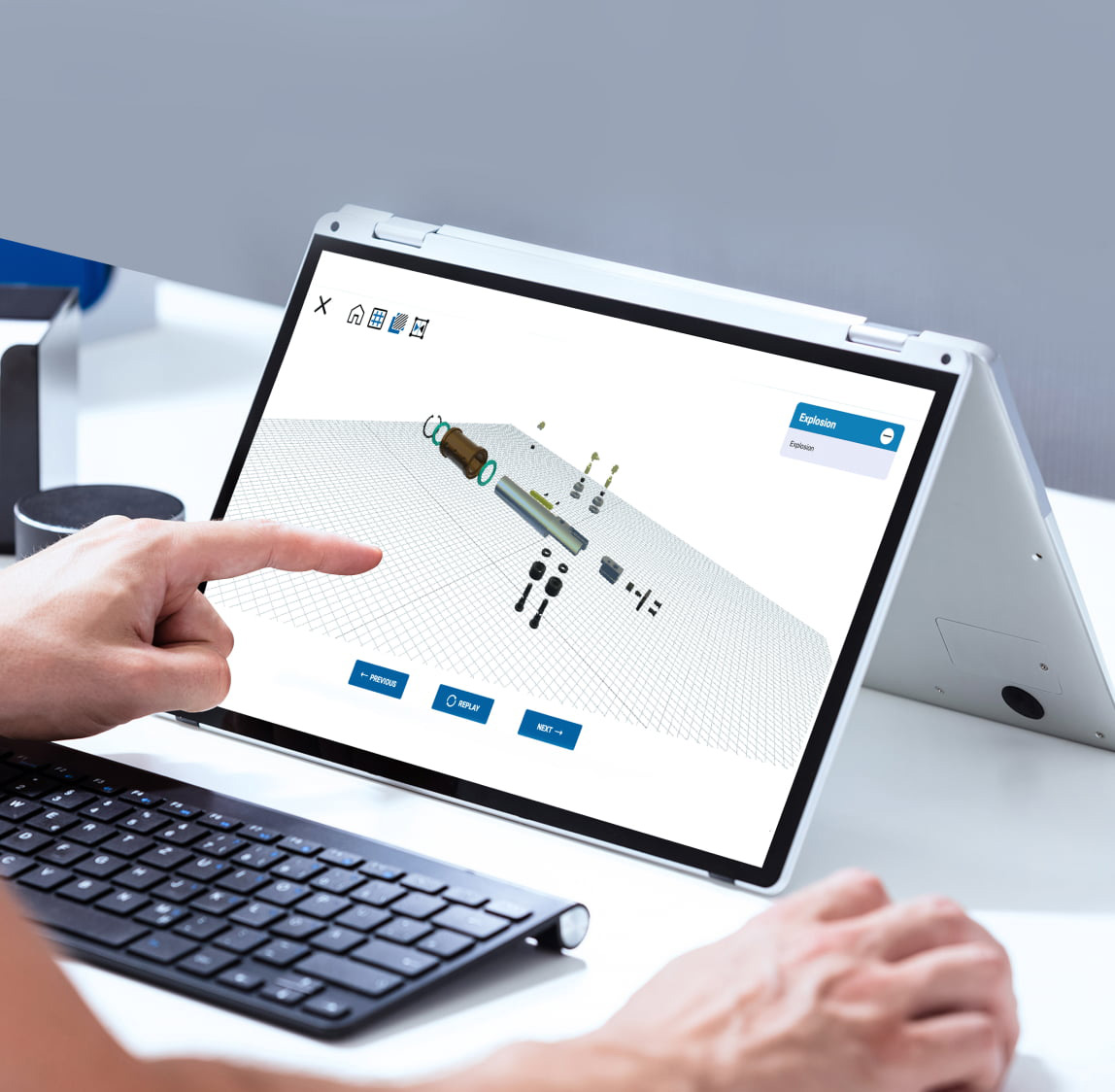
Mentor supports all major 3D CAD model formats including STEP.
CAD Mesh
Imported CAD models are optimized to a fraction of their original size. This allows Mentor lessons to be viewed on both desktop and mobile devices.
Materials and Colors
CAD model colors and materials are automatically imported into Mentor. Mentor includes a material library for convenient assignment to 3D parts.
Mentor Studio
Mentor Studio
Mentor Studio provides an easy way to create detailed 3D work instructions from your existing CAD data. By offering an intuitive no-code interface, Mentor Studio can help users to quickly create rich, interactive 3D content that provides crucial information to front-line workers. Whether you’re looking to create training materials to improve worker productivity, quality, and safety or simply provide a better customer experience, 3D works instructions can be a valuable tool.
STEP 01

Define
Use your existing instructions and CAD models as the foundation to create each 3D work instruction
STEP 02

Create
UseMentor Studio allows users create step-by-step interactive work instructions for front-line workers
STEP 03

Test
Mentor Studio includes a secure sandbox for testing each instruction.
STEP 04

Go Live
Publish 3D work instructions to the Mentor cloud for delivery to desktop and mobile devices
STEP 05

Refine
User feedback is monitored and reported to provide valuable insight for improving instructions


About CDS
- A cloud-based software company focused on 3D visualization
- Help Original Equipment Manufacturers unlock the potential of their CAD assets
- Headquarters in San Jose, California
- Provides over 10 million visualizations per month
- Serving companies globally
Trends and news in visual technology

